
Start with one real task#
First, set your first and last name so teammates can recognise you.
Choose an order your team is already working on. A useful first comment explains the situation and the next action: “The blue item is ready. Please confirm whether we should wait for the remaining item before packing.”
Keep the discussion about this order. Put unrelated work on the relevant order so the next person can find the context. Avoid passwords, payment-card information and unrelated personal details in comments.
Post and direct the update#
Check the order heading
Confirm the order number and customer before writing. The status badge gives the current order context.
Write the update
Use Add a comment. Include what happened, what you need and who should act. Comments are plain text, with a maximum of 5,000 characters.
Choose a teammate
Type @ and part of their name, then select them from the picker. Check that their name appears in the Notify chips beneath your draft.
Post once and check the result
Select Post comment and wait for confirmation. Your teammate receives an in-app mention; email also depends on the store’s configured sender.
Close the loop
The teammate opens their notification, reads the highlighted comment and posts a reply. Replying in the thread keeps the decision with the order.
Know the conversation screen#
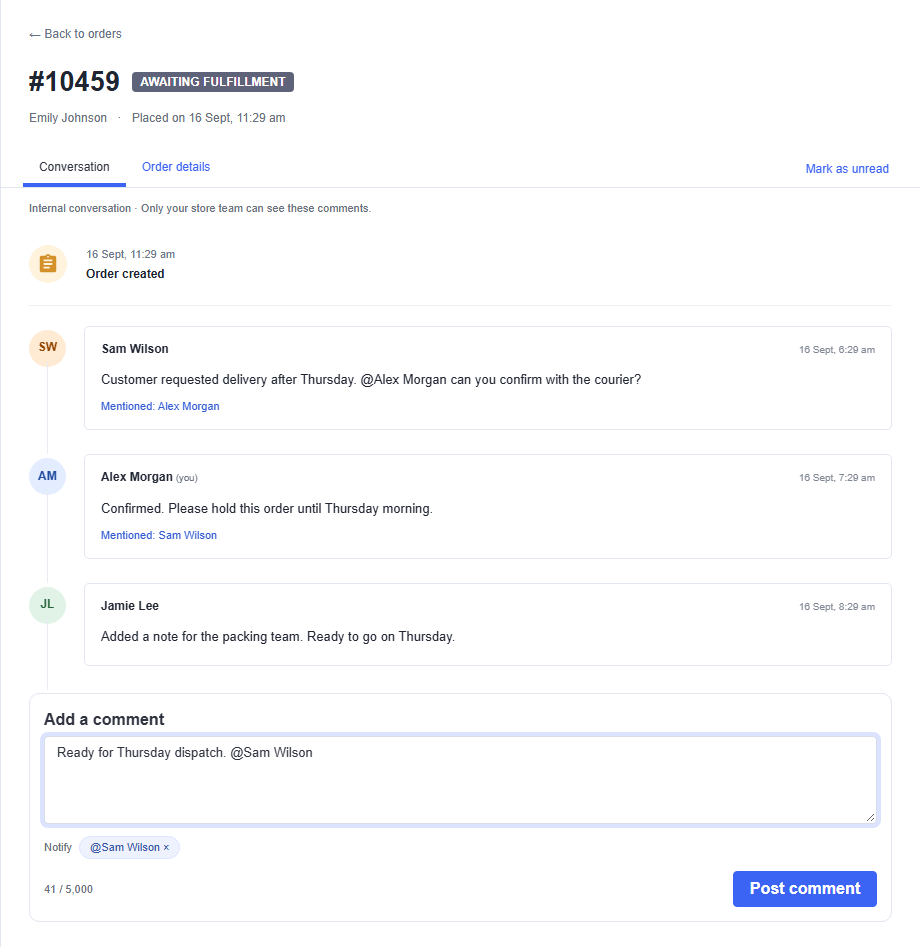
The heading identifies the order and its status. Each comment shows the author and posting time. Coloured initials help distinguish authors, including people whose names start with the same letter; always check the full name beside the comment.
In the main app, Conversation shows the thread and composer, and Order details shows customer, status and placement date. Select Load earlier comments when more history is available. Conversations check for new comments about every 30 seconds while the browser tab is visible. The Refresh button is available in the compact BigCommerce order panel.
Your first-day checklist#
These ticks are a personal reminder saved in this browser. They do not change your store, send messages or verify installation. Reset them whenever you want to work through the guide again.