
Who can do what#
| Action | Authorised staff | Store owner |
|---|---|---|
| Read and post order comments | Yes | Yes |
| Mention available teammates | Yes | Yes |
| Update their own display name | Yes | Yes |
| Read and manage their own notifications | Yes | Yes |
| Delete comments | No | No |
| Change the store’s email detail preference | No | Yes |
| Retry setup or a confirmed email failure | No | Yes, when the relevant control is offered |
Order Chat uses your BigCommerce identity. A teammate’s unread state and notifications are their own; sharing an account makes those indicators less useful.
Change your display name#
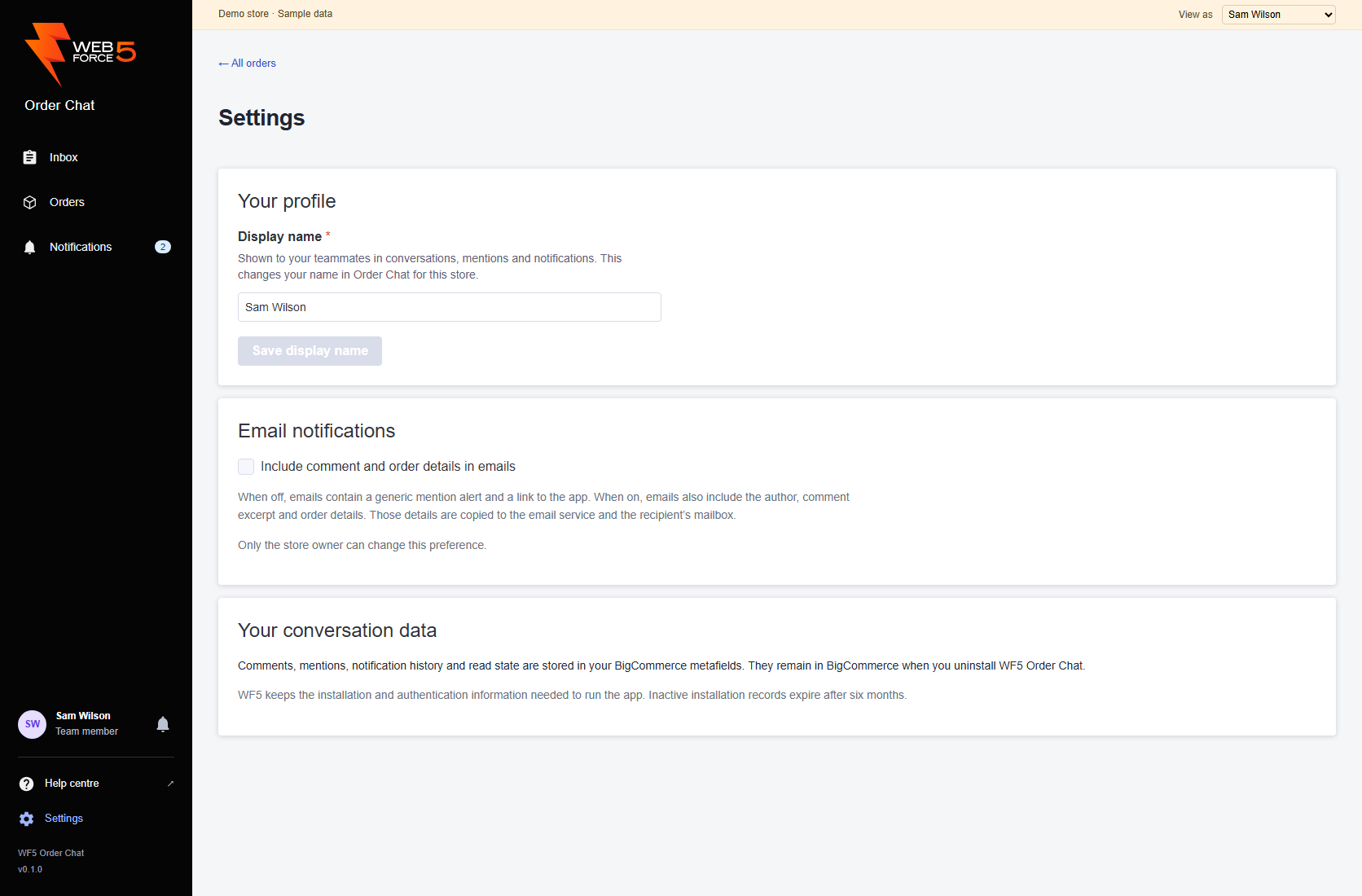
Open Settings below Help centre in the navigation. Under Your profile, enter your first and last name in Display name and select Save display name. Wait for the saved confirmation. Use 1 to 80 characters on one line.
Everyone can update their own name, including team members. It appears on existing and new comments, in the teammate picker and in notifications for this store. Your avatar colour stays tied to your account. Other open screens pick up the change when they next refresh. The Save display name button is disabled when the field is blank or matches the saved name.
This changes your Order Chat name for this store, not your BigCommerce account name, email address or permissions. Existing comment text and emails already sent are unchanged. Your chosen name is retained when you reopen the app. If saving fails, your entry stays in the field so you can retry.
Make a teammate available#
Manage app access in BigCommerce, then ask the teammate to launch WF5 Order Chat once. Their name and email address become available to the app’s staff directory for this store. Refresh the conversation after they have opened it to update the picker.
The picker is not a complete list of every staff account in BigCommerce. It lists authorised people known to Order Chat. There is no separate invitation, role editor or manual staff import in the app.
When someone leaves the team#
The owner should remove the person’s app access through BigCommerce. Access revocation prevents their continued app use. Older conversation history remains part of the store’s records; removing access does not erase the person’s past comments.
If a selected recipient is no longer available, remove their chip before posting. Historical entries may refer to a former team member. Contact WF5 if access appears inconsistent after a person has been removed.