
Create a mention that notifies#
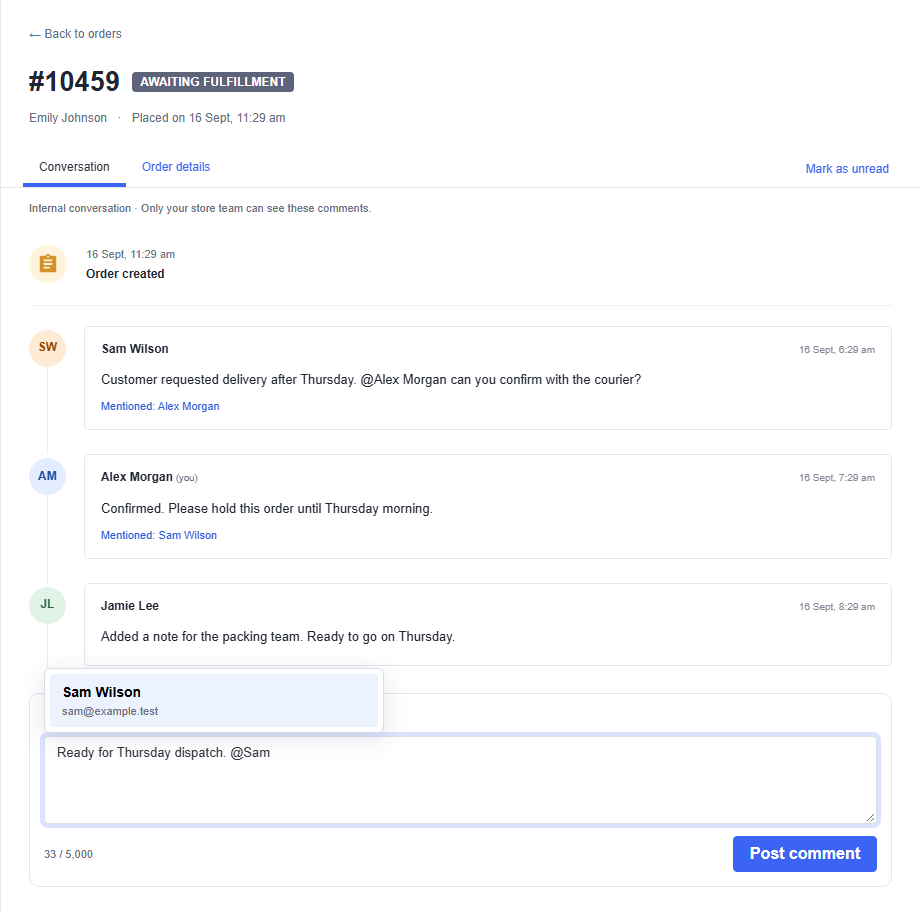
Type @ in your draft
Start a new word with @ and type part of a teammate’s name or email address.
Select the person
Choose a result in the Teammates picker. You can use the arrow keys and Enter.
Check Notify
The selected recipient appears as a chip beneath the draft. Add more teammates only when each needs the update.
Post your request
Explain the action you need and select Post comment. The recipients get an in-app mention. Configured email notifications are processed separately.
Change who will be notified#
Before posting, use the × on a recipient chip to remove that person. Their visible name may remain in the text, but they are no longer selected to receive the mention. Deleting their matching @name text also removes the recipient chip. Check the Notify chips again before posting.
The picker excludes you and already selected recipients. Selecting a person once is enough; they do not receive several notifications for the same comment just because their name appears more than once. After posting, recipients cannot be edited. Add a new comment if another person needs to be involved.
When a teammate is missing#
People appear after opening Order Chat with an authorised account for this store. Ask the teammate to open the app, then refresh your conversation after saving or copying your draft. Check that you are both in the same store.
A person who has lost access cannot receive a new mention through the app. If posting says “A mentioned person no longer has access”, remove that recipient and choose an available teammate. Contact the owner if the person should still have access.
What the recipient receives#
The notification bell records the mention and links to the exact comment. The order also appears in the recipient’s Mentions view. Email is an additional alert, not the conversation itself: reply in Order Chat.
Email details depend on the owner’s email preference. With details off, the email is a generic alert and app link. With details on, it includes the author, excerpt and order context. If email is not configured or delivery fails, the in-app mention is still the place to check.