
Before you start#
WF5 Order Chat keeps internal staff conversations beside the orders they relate to. Use it for packing questions, delivery updates and handovers. Customers do not see the conversation in their account or on your storefront.
You need a BigCommerce staff account with access to the app. The store owner arranges installation and staff access. If Order Chat is not installed, ask your owner for the installation link or contact WF5.
Open Order Chat#
Open your BigCommerce store
Sign in to the control panel with your own staff account. Avoid sharing an account: author names, unread conversations and mentions belong to the signed-in person.
Launch the installed app
Open Apps and select WF5 Order Chat. If installation is still required, the owner should review and approve the requested permissions using the installation link supplied for the app.
Set your display name
Before posting, open Settings below Help centre. Under Your profile, enter your first and last name, then select Save display name. See the first-login steps below.
Find an order
Open Orders and select an order number. You can also search using the order number or customer name. Orders without a conversation show No comments yet.
Add a useful update
Write in Add a comment and select Post comment. Wait for Comment posted. The comment is now part of this order’s shared conversation.
First login: set your first and last name#
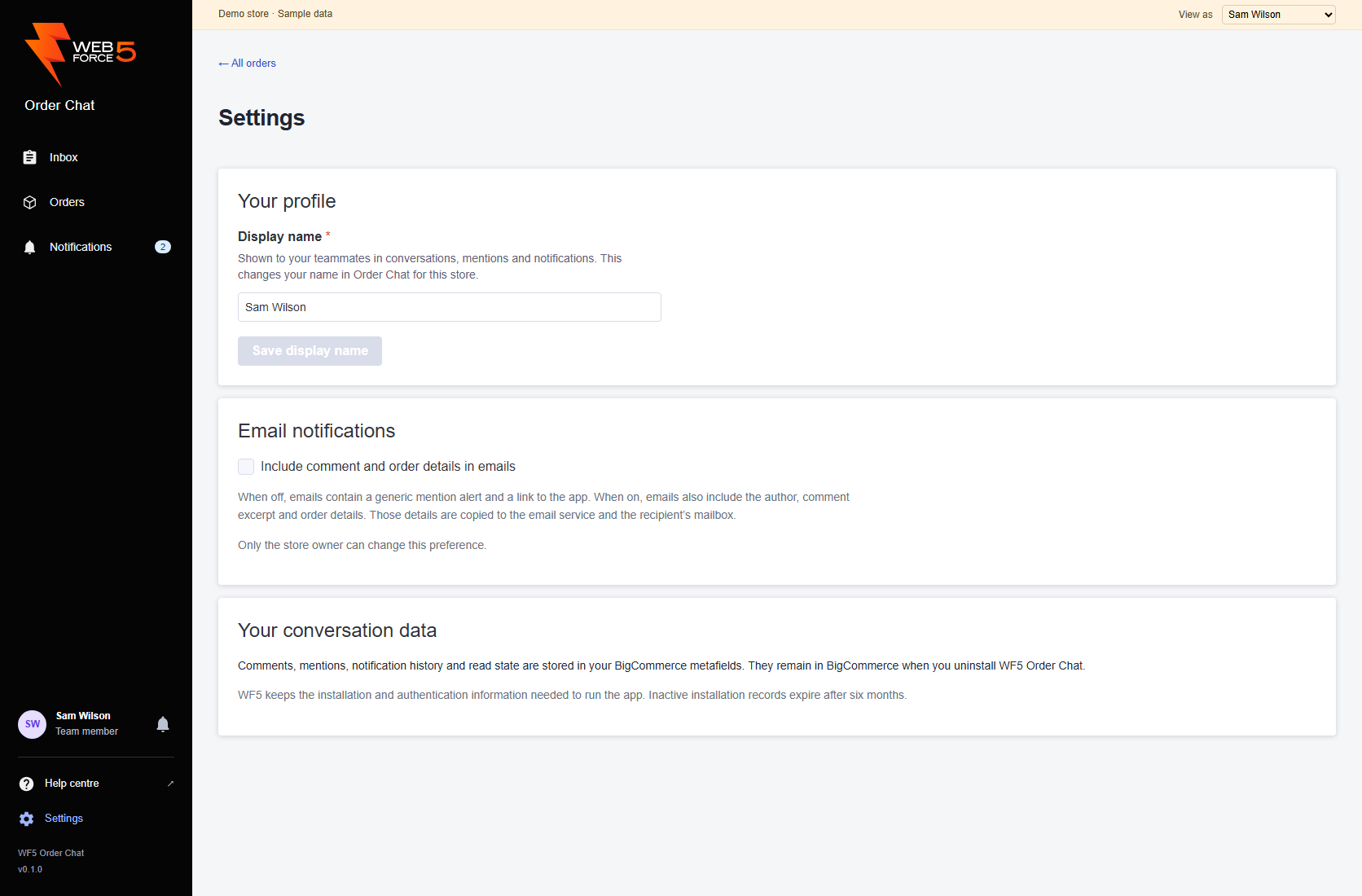
On your first visit, set your display name before posting or asking teammates to mention you. Use your first and last name, for example Sam Wilson, so colleagues can recognise you. Follow the steps below from the main app.
Open Settings
Launch WF5 Order Chat from Apps in BigCommerce. Select Settings below Help centre in the left navigation. On a small screen, select Open navigation first. Settings is available in the main app, not the order context panel.
Enter your first and last name
Under Your profile, replace the Display name with the name your team knows you by. Use 1–80 characters on one line.
Save and check
Select Save display name. Wait for Display name saved. Your name in the navigation updates too. If the button is disabled, the name is either blank or already saved.
Start working
Open Orders or Inbox and find an order. Your new name appears on your existing and new comments and in the teammate picker.
Every user can change their own display name. It is saved for this store and kept when you reopen Order Chat. It does not change your BigCommerce account, email address or permissions. For later changes or a failed save, see display-name guidance.
Get your teammates ready#
Ask each teammate to open the app once using their own authorised BigCommerce account and set their first and last name. They then become available in the mention picker. Order Chat does not offer a separate invitation form or a separate app password.
If a teammate cannot open the app, ask the store owner to check their BigCommerce app access. Typing their name into a comment does not grant access or create an account. See mentioning a teammate for the selection steps.
Come back to the workspace#
Launch Order Chat through BigCommerce when you return. Bookmark this public help centre for guidance. If an old conversation link says your session has expired, open the app again through BigCommerce, then return to the order.
You can also use the Order comments shortcut in the BigCommerce Orders area. Both views open the same order conversation.