
Use the Order comments shortcut#
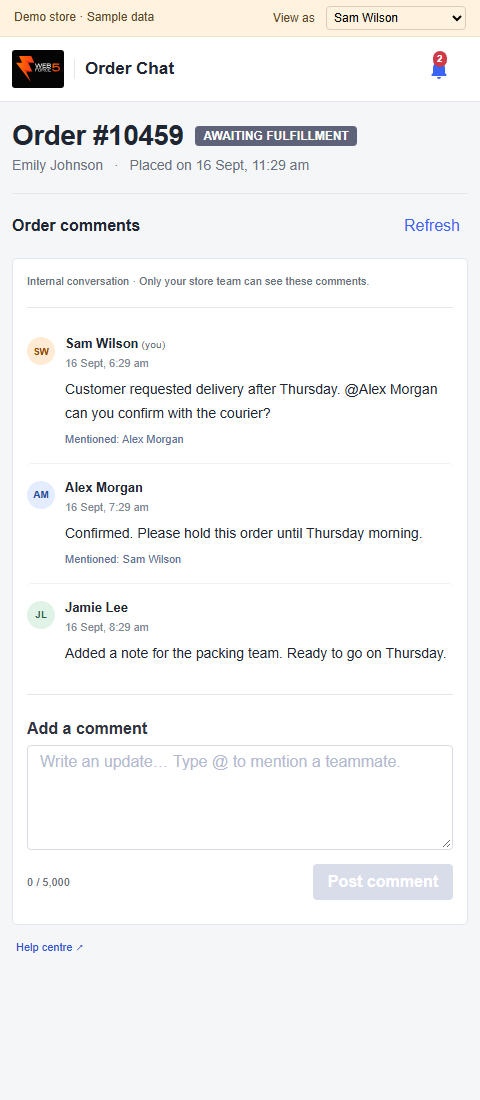
In BigCommerce’s Orders area, open the order’s available app actions and select Order comments. BigCommerce opens the Order Chat panel for that order. The precise menu placement depends on the control-panel view.
Check the order number in the panel heading. Read the discussion, write a comment or select a teammate using the same controls as the full app. The panel is useful when you are already processing an order and need a quick update.
One conversation, two ways to open it#
The panel and full app share comments, mention history and read state. You do not need to copy a message between them. A comment posted in the panel appears in the full workspace.
The context panel has a Refresh button, notification bell and Help centre link. It has no Settings icon. To change your display name or review email preferences, open WF5 Order Chat from BigCommerce Apps and use Settings below Help centre.
Use the full app’s dashboard to search across orders or catch up using Unread and Mentions. Use the panel for the order you are currently handling. On a narrow screen, scroll through the conversation to reach the composer and controls.
If the shortcut is unavailable#
Open WF5 Order Chat from Apps and find the order there. If the app reports that the order menu shortcut or status updates could not be set up, the owner can use Retry setup in the displayed notice.
The retry control appears only after a setup failure. If it still fails, contact WF5 to check registration and app permissions. Keep using the full app where available; uninstalling is not a routine refresh step.