
Three useful views of activity#
| Indicator | What it means | What clears it |
|---|---|---|
| Unread conversation dot / Unread tab | Another person has posted a comment you have not read, or you manually marked the conversation unread. | Viewing the conversation’s newer comments. Your own posts do not create unread activity for you. |
| Bell unread count | You have unread individual mention notifications. | Reading the mentioned comment, using Mark read or using Mark all as read. |
| Mentions tab | Orders with a mention for you, including history. | Reading does not remove the order from your mention history. |
Marking a notification read is not the same as reading every comment on its order. An order can remain unread after the bell count drops. A conversation can be unread without anyone mentioning you.
Open a notification#
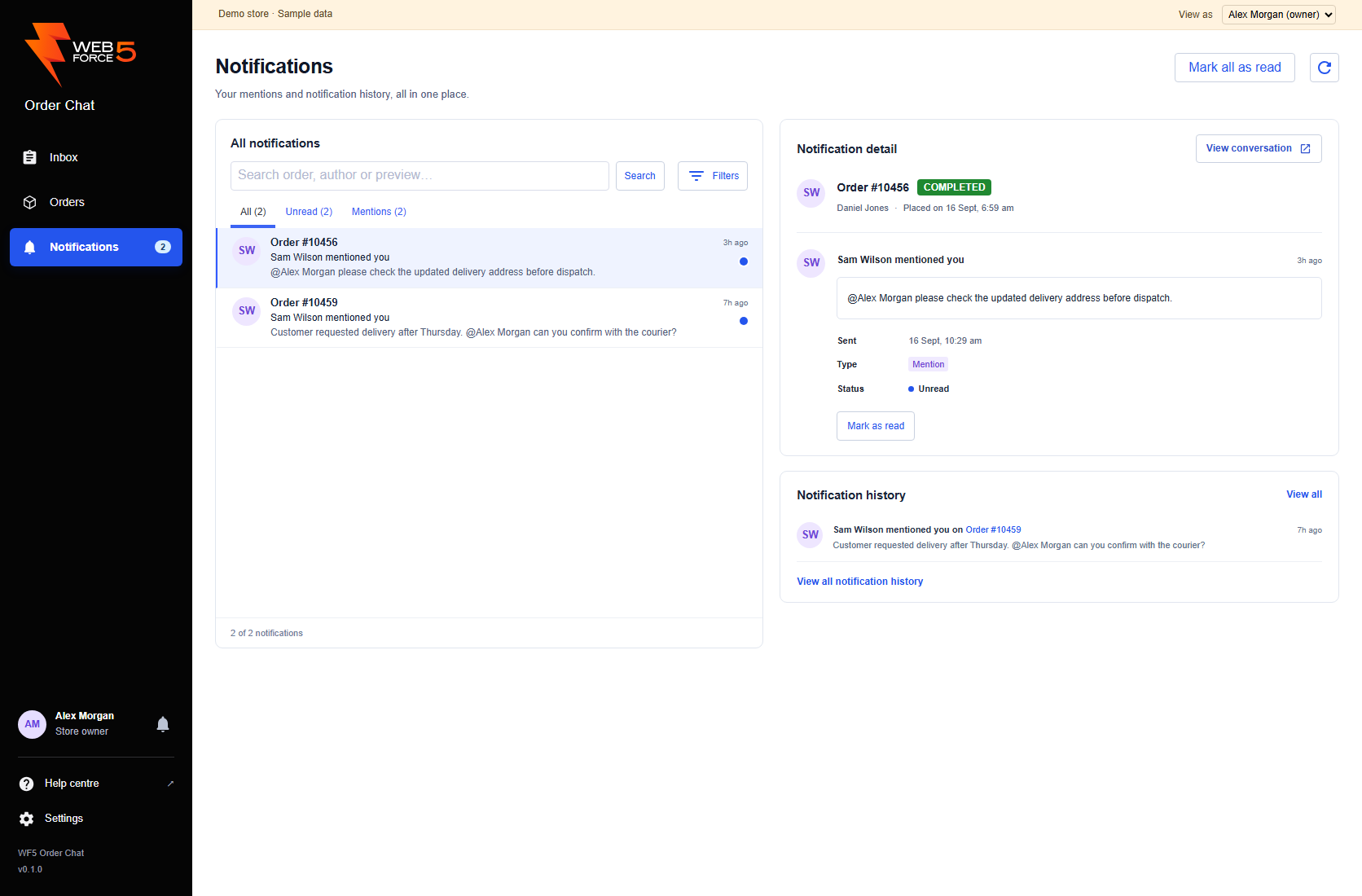
Select Notifications in the black left navigation. On a small screen, open the navigation menu first. Select an entry to preview its full comment and order details, then choose View conversation to open that exact comment in the thread. Previewing an entry does not mark it read.
Search by order number, author or comment preview, then select Search. The search covers your notification history, including older pages. Use Unread to focus on unread alerts and Filters to narrow the received date. Load more notifications shows older results. The history panel provides shortcuts to recent entries; View all notification history clears the current search and filters.
The All and Mentions tabs include both read and unread alerts. The Unread tab shows alerts you have not marked read. The tab counts describe your full notification history; the result count below the list reflects the current search and received-date filter. Use Filters to choose Any time, Last 24 hours, Last 7 days or Last 30 days. Dashboard statistics are available on the Inbox page.
The bell beside your user details still opens a quick overlay without leaving your current screen. In the compact order panel, the bell remains in the header. Close the overlay with its close button, by clicking outside it or by pressing Escape.
Use the notification bell for a quick check#
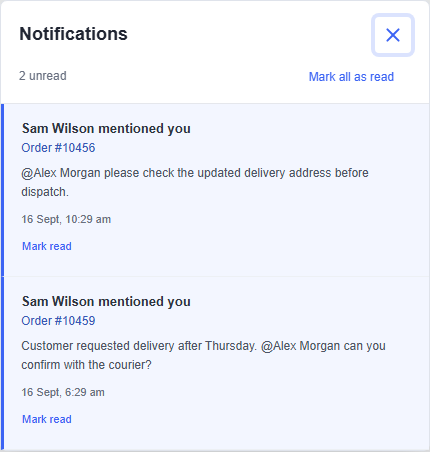
The bell beside your user details opens a small notification panel over the current screen. In the BigCommerce order context panel the bell is in the header. Select a mention to open its exact comment, or use Mark read to clear that alert without opening the order.
Mark all as read applies to all current mention notifications, including older entries not loaded yet. Load more notifications adds older entries. Close the panel with its close button, Escape or a click outside it. Your current app screen stays open behind the panel.
Mark alerts read deliberately#
Mark as read clears one notification’s unread state without opening its order. Use Mark as unread in its detail panel to return it to your unread list. Mark all as read clears the notifications that exist at that moment, including entries outside your current search. New mentions that arrive afterwards remain unread.
Notifications have no delete action. Use Mark as read to clear an unread alert while keeping it in your history.
When you read a conversation, the app tracks comments that become visible. Loading an older page does not silently clear later unseen mentions. Posting your own reply also does not mean you have read every earlier update.
Build a catch-up routine#
Start with the bell for direct requests, then visit Unread for wider team activity. Open the order, read enough history to understand the request and reply with the outcome. Keep Mentions as a route back to earlier requests.
The visible app checks for updates about every 30 seconds. The open notification panel also refreshes automatically, keeping earlier loaded history in place. Checks pause while the browser tab is hidden. The bell panel checks immediately when you return; other views update on their next scheduled check. If counts stay out of date, use the refresh guidance.