
Use the Inbox dashboard#
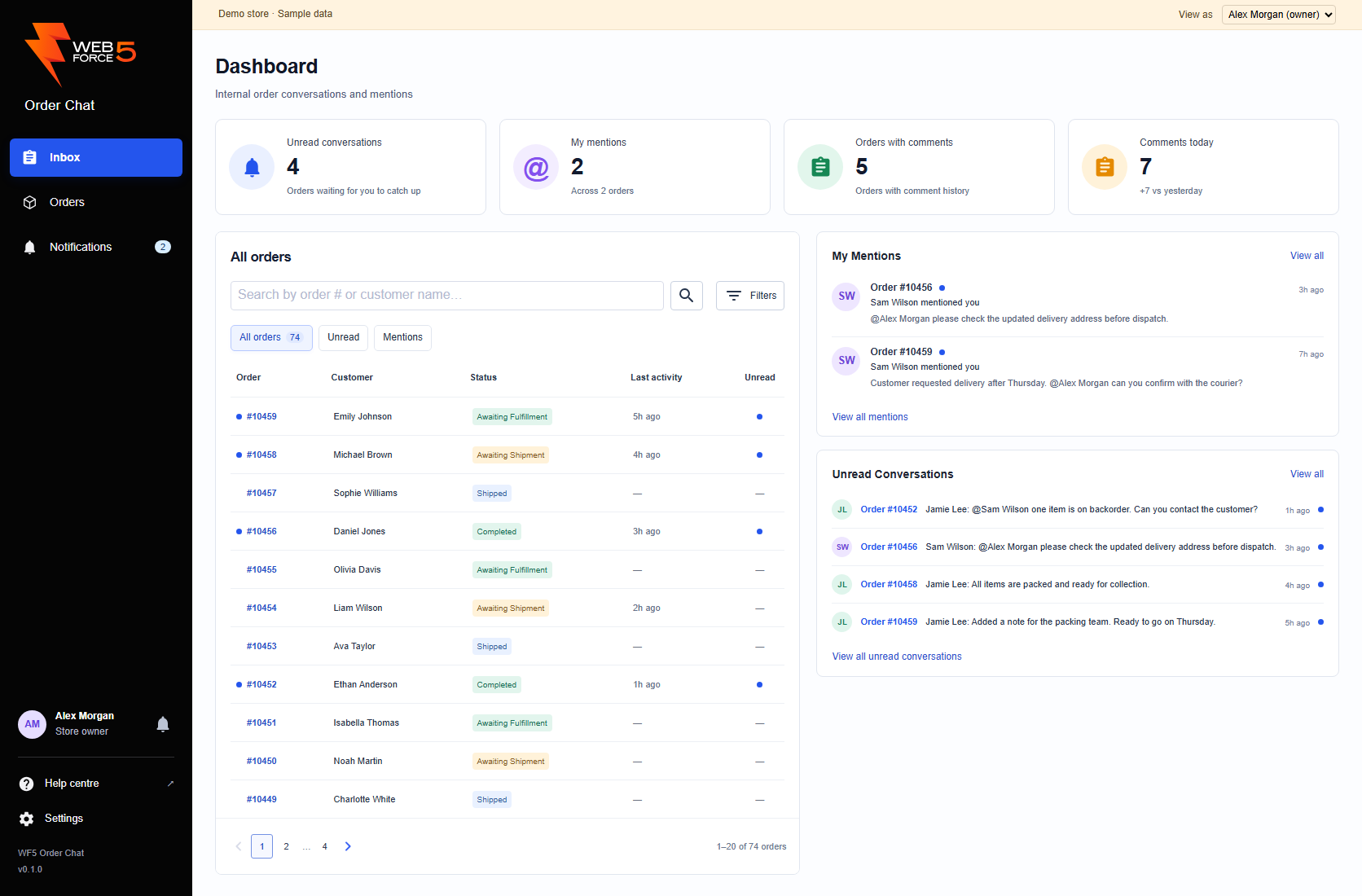
Open Inbox in the left navigation. The dashboard brings together All orders, your five most recent mentions and five most recently active unread conversations. Use View all mentions to open Notifications, or View all unread conversations to select the Unread order view.
| Card | What it counts |
|---|---|
| Unread conversations | Orders with comments from another person that you have not read, plus conversations you manually marked unread. |
| My mentions | Your individual mention notifications, including read history. The line beneath counts distinct orders. |
| Orders with comments | Orders with comment history. This does not indicate tasks that are open or unfinished. |
| Comments today | Comments posted today in your browser time zone. The comparison is the difference from yesterday’s total. |
The cards describe store activity and your personal reading state; searching or filtering the order list does not narrow the cards. A blue dot in the Unread column marks an unread conversation, not a number of unread comments. The dashboard checks for updates about every 30 seconds while visible.
Read the orders dashboard#
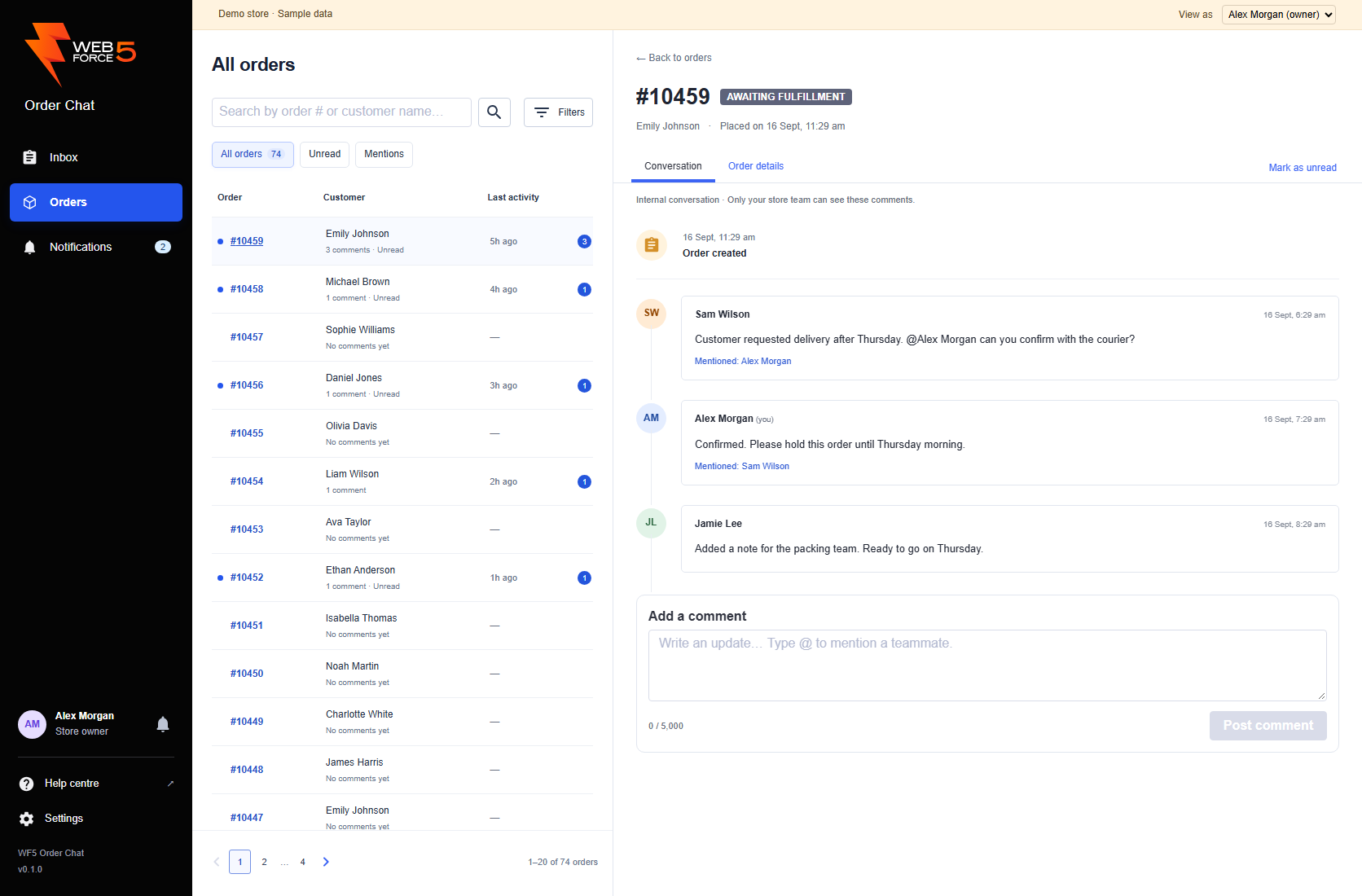
Open Orders in the left navigation. Everyone can find Settings beneath Help centre at the bottom of the sidebar. The compact list shows order numbers, customers, comment counts and the time of the last comment. Orders appear newest first by the order’s creation date. Select an order number or customer to open the conversation alongside the list. The selected row is highlighted.
A blue dot marks an unread conversation. The blue number is the total comment count, not a count of unread comments. All orders includes orders with no comments.
On narrow screens, selecting an order opens its conversation on its own. Use Back to orders to return to the same search, filters and page. The Order details tab shows the customer, status and placement date. Use View in BigCommerce to manage the full order.
Open an order from Inbox#
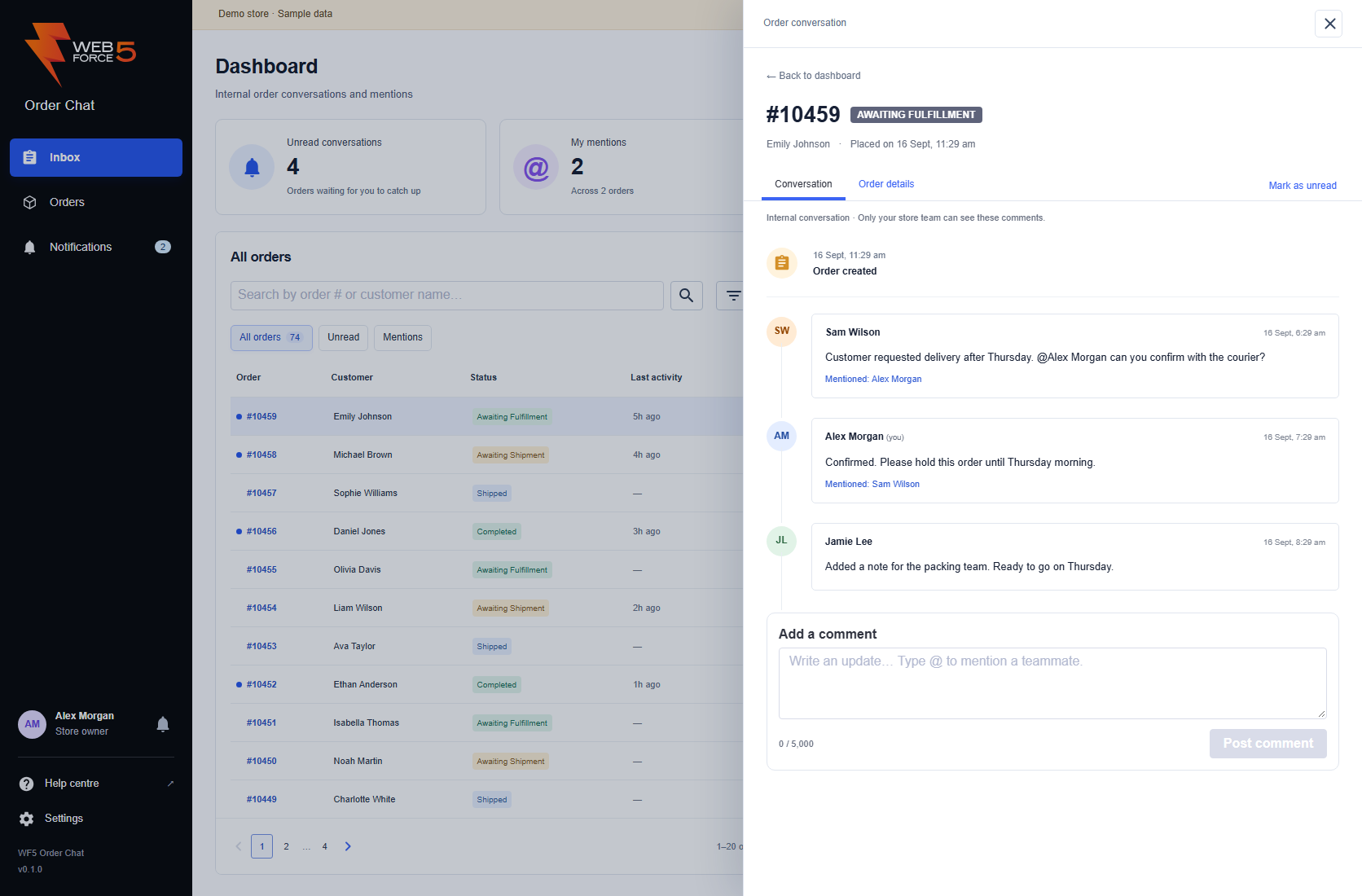
Select an order number or customer in All orders, or an order in My Mentions or Unread Conversations. A conversation drawer opens on the right. The dashboard stays behind it. A mention opens and highlights the specific comment.
Use the same composer and teammate picker as the Orders page. Close the drawer using the close button, Escape or Back to dashboard. Browser Back also returns to the previous selection. Your order search, filters, page and unsent draft remain available when you reopen the conversation within this app session.
On a small screen the drawer fills the available width. Scroll inside it to reach older comments or the composer. Reloading the page or closing the app clears unsent drafts.
Check order details#
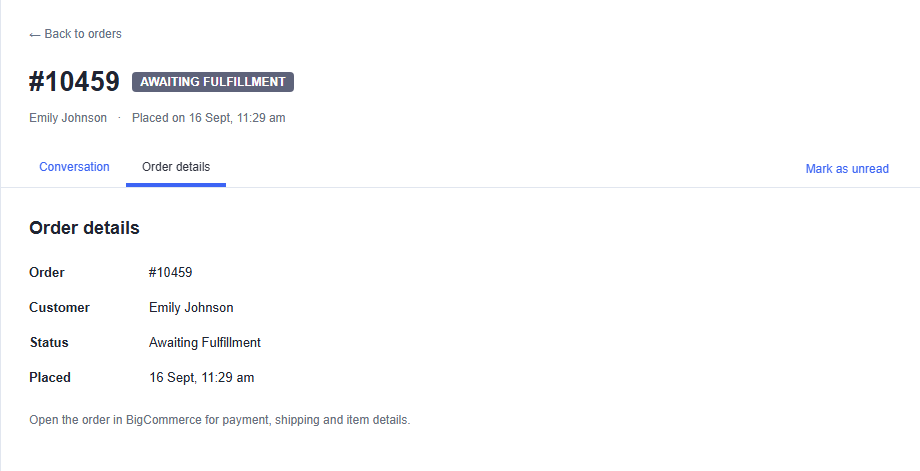
On the Orders page or in the Inbox drawer, select Order details to check the order number, customer, status and placement date. Return to Conversation to keep reading or writing; switching tabs keeps the draft.
On a connected store, View in BigCommerce opens the full order for items, payments, shipping and other order management. The compact order panel uses the label View order. These links are absent from synthetic demo screenshots. Order Chat does not edit those order details.
Choose the right view#
| View | What it shows | Use it when |
|---|---|---|
| All orders | Your store’s orders, including orders without a conversation. | Starting a new conversation or finding a specific order. |
| Unread | Conversations with unread comments, plus orders you deliberately marked unread. | Catching up on team activity. |
| Mentions | Orders where you have been mentioned, including previously read mentions. | Returning to work someone directed to you. |
The Mentions tab is an order list. The Notifications bell is your individual mention history. Their counts and rows have different meanings; see unread conversations and notifications.
Use Mark as unread beside the conversation tabs to return an order to your Unread list. Automatic reading pauses for that open conversation until you choose Mark as read or reopen it. This changes your conversation state, not other teammates’ state or the order’s status.
Search and move between pages#
Choose a view
Select All orders, Unread or Mentions. A search applies within the selected view.
Enter an order number or customer name
Use Search orders and select Search. Search does not look through the text of comments. Use the complete order number when you know it.
Broaden the result if needed
Select Clear to remove an active search. Switch to All orders if the order has no unread activity or mentions for you.
Browse further
Use the previous/next arrows or available page numbers below the list. Each page contains up to 20 orders. Changing the search or view returns you to page one.
Filters lets you narrow the order placement date or show only orders with comments. Filters apply before pagination. Search, filters and page position stay in the address while you switch conversations or use browser Back. Counts are shown when the matching total is available.
Filter by order date or comment history#
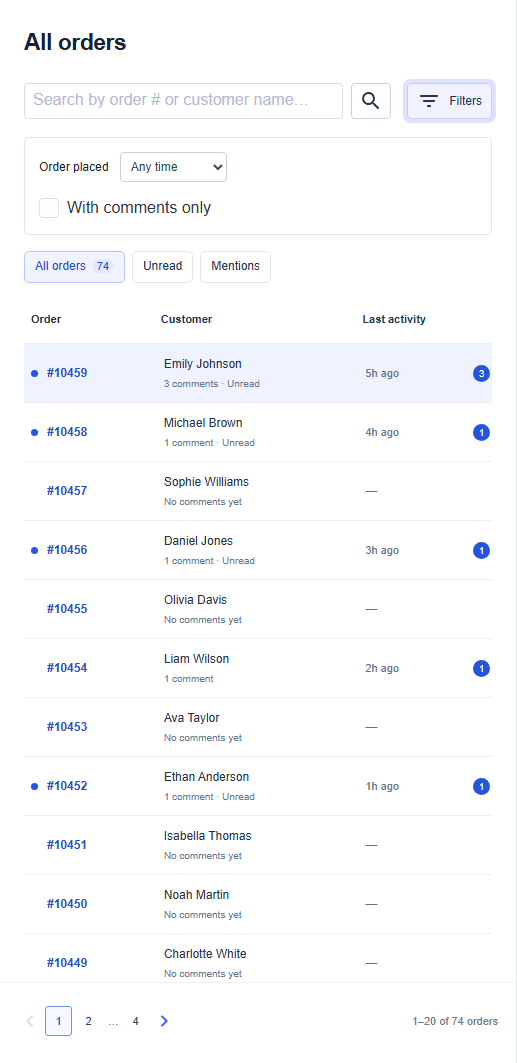
Select Filters, then choose Order placed: Any time, Last 24 hours, Last 7 days, Last 30 days or Last 90 days. This uses the order’s placement date, not the date of its latest comment. Select With comments only to exclude orders without a conversation.
Filters combine with your selected All orders, Unread or Mentions view and your search. They apply before pagination. Select Clear to remove search and date/comment filters; your selected view remains. Orders stay sorted newest first by placement date. Last activity reports the latest comment time, not the sort order.
The range below the list shows the current page. The app shows a matching total and numbered page shortcuts when available; otherwise use the previous/next arrows. A missing total does not mean orders are missing.
Understand updates and empty views#
The visible workspace checks for updates about every 30 seconds. A newly posted comment may take a moment to appear in the order list or mention history. A success message saying the list is still updating means the comment was saved; do not post it again just to update the preview.
“You’re all caught up” means there are no unread conversations in the current view. “No mentions yet” means there are no matching mentioned orders. “No matching orders” means you should check your search and selected tab before assuming the order is missing.